Habit Tracker Printable
A monthly habit tracker with the right days and weekdays for the month you pick, and your habits printed in the first column.
How to use the habit tracker
- Choose a month and year at the top. The tracker then shows that month’s real number of days, with the weekday initials M T W T F S S above the dates. To make a reusable tracker instead, pick “No month” for a 1–31 layout.
- Set the number of habit rows, from 1 to 40. The default is 20.
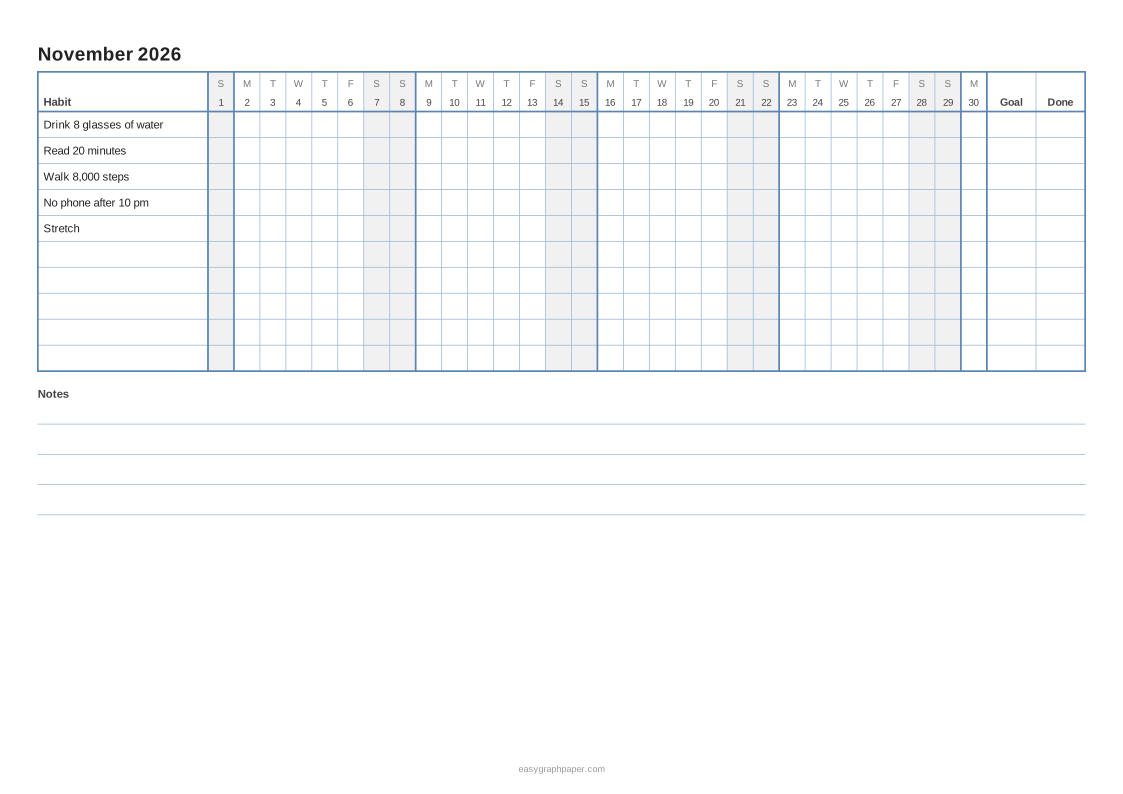
- Type your habit names, one per line. They print in the first column. For example: drink 8 glasses of water, read 20 minutes, or stretch.
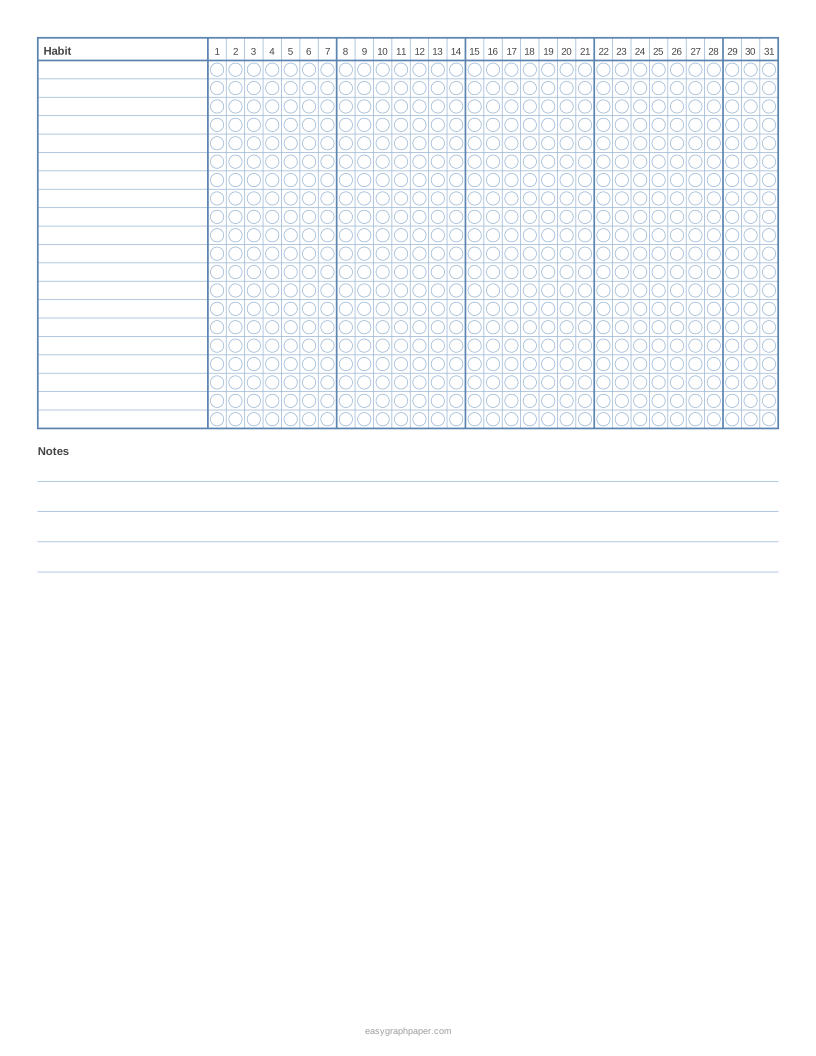
- Choose square cells or circles, and select weeks starting on Monday or Sunday.
- Turn on shaded weekends if you want them, and add the Goal and Done columns.
- Set 0 to 20 note lines below the grid, and pick a line colour, line weight and paper size (US Letter or A4 work well; landscape gives wider day cells).
- Under “Page and print settings”, add an optional title or Name and Date line, change the margin, or set the number of pages (1 to 50) if you want identical sheets.
- Click Print, or click Download PDF to get a file whose page matches the paper size.
Print at 100 % or “Actual size” with “Fit to page” turned off, so the cells print at the size shown. Copy link saves all current settings so you can recreate or share the same sheet. Each week, look at the rows to see which habits need a different time of day or a smaller goal.
What is a habit tracker?
A habit tracker is a chart with one row per habit and one column per day of the month. You mark the box each day you do the habit, so the pattern is easy to see. A full row of marks shows consistency, while a gap shows a day you missed.
The chart works because it turns a daily action into something you can see over time. Looking at one day rarely tells you much, but a month of marks shows which habits you keep and which slip. For example, a row for “walk 8,000 steps” with marks on most weekdays but none on weekends points to a specific problem you can fix.
How to make a habit tracker
Start by choosing a few habits that are specific and small, such as “no phone after 10 pm”. Write each one in its own row. Then count the days in the month, because the columns must match that length. February 2027 has 28 days, while February 2028 has 29 because it is a leap year.
Next, draw a column for each day. Adding weekday initials above the dates helps you spot weekends at a glance. Mark each box on the day you complete the habit. If you want a target, add a Goal column for the number you aim for, and a Done column to count your marks at the end of the month.
Finally, review the sheet once a week; a short look at the rows is enough to decide what to change. If a habit has few marks, shrink the goal or move the habit to a different time of day. This tool builds that grid automatically, so you only need to set the month and habit names.
Examples made with this generator
Frequently asked questions
Can I print a tracker for a specific month?
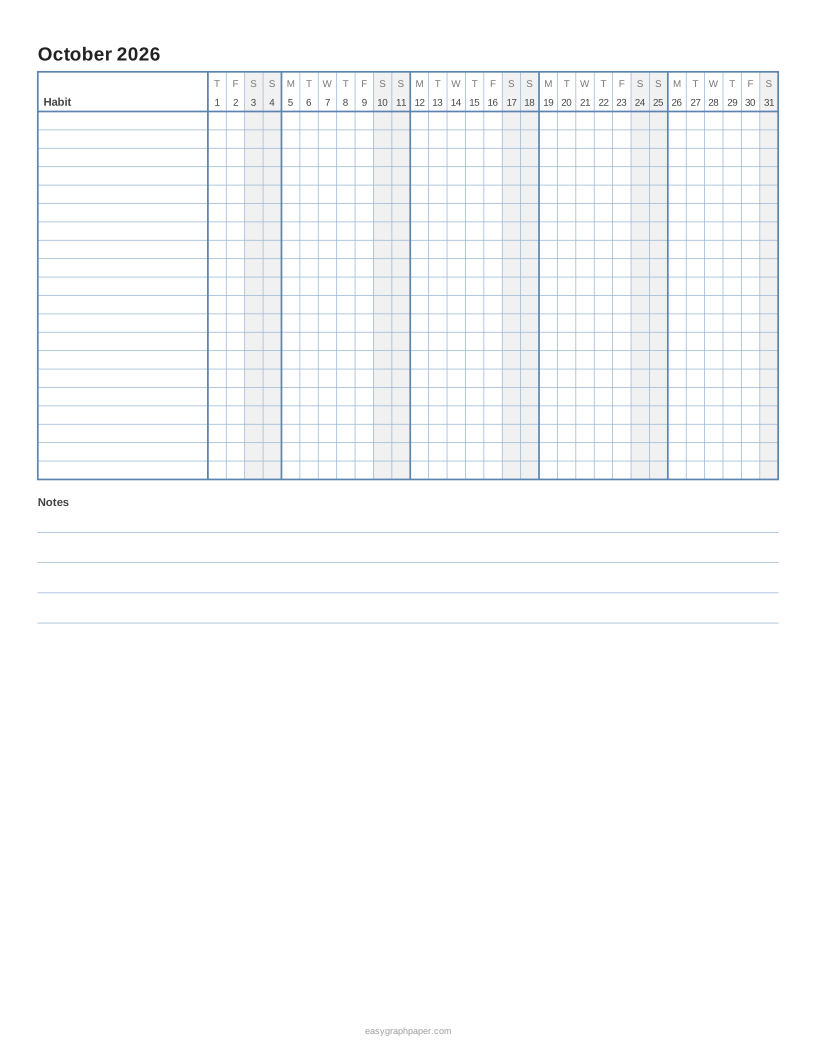
Yes. Choose the month and year at the top, and the tracker uses that month’s actual number of days. October 2026 starts on a Thursday, and the weekday initials show that alignment above the dates.
Is the habit tracker printable really free?
Yes. The sheet is drawn in your browser as vector graphics, and your settings are not uploaded. You do not need to sign up or download anything.
Can I use a 30 day habit tracker printable for any 30 days?
Choose “No month” to get a reusable 1–31 tracker. You can then start on any day and use the first 30 columns. You can also set the number of pages to print several identical sheets.
Why do my squares look smaller when I print?
Printing with “Fit to page” or “Shrink to fit” shrinks every square slightly. Print at 100% or “Actual size” with those options turned off.
How many habits can one sheet hold?
A sheet can hold 1 to 40 habit rows, with 20 as the default. On US Letter with 10 mm margins, 20 habits and 31 days give day cells about 4.87 mm wide. Adding Goal and Done columns narrows them to about 4.03 mm.
Can I save my settings and share the sheet?
Yes. Copy link stores all current settings, so you can recreate the same sheet later or send it to someone else.
Related paper templates
- Cornell notes template: Use it when you want to take structured notes during a lesson or reading.
- Lined paper: Use it for free writing, journaling or handwritten practice.
- Dot grid paper: Use it for bullet journals, sketches or layouts that need light guides.
- Grid paper: Use it for graphs, maths work or planning boxes on a precise grid.
- T chart template: Use it to compare two columns of ideas, such as pros and cons.
- Calligraphy paper: Use it for practicing lettering with guide lines.