Pixelate Image
Add a photo, pick the block size, and pixelate the whole picture or only the parts you draw over. Download it at full size.
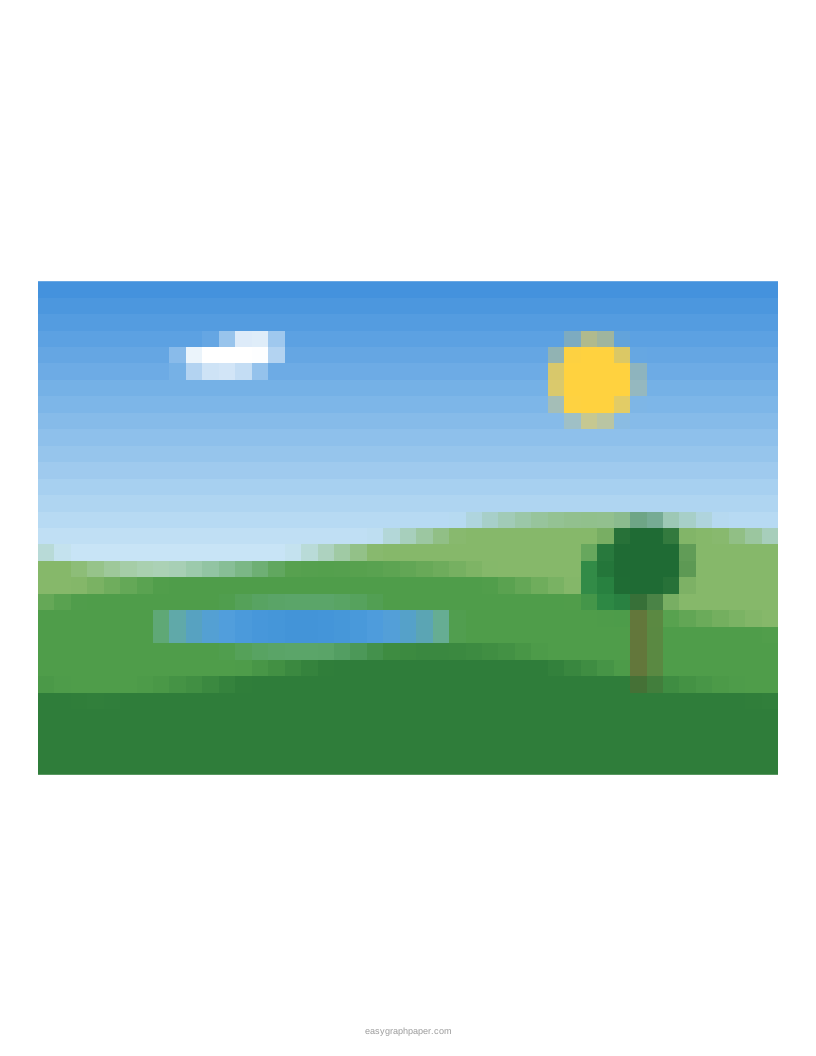
To pixelate an image, this free image pixelator turns the picture into a grid of square blocks, each filled with the average colour of the pixels inside it. It runs in your web browser, with no account needed, and works on phones and tablets. Use it to pixelate a photo or a quick pic for a post, hide a face or name, or give a picture a retro pixel-art look.
You can pixelate the whole picture or only selected parts of it. You can set the block size in pixels or by the number of blocks across, and you can blur the picture instead. Pictures are processed on your device and are never uploaded.
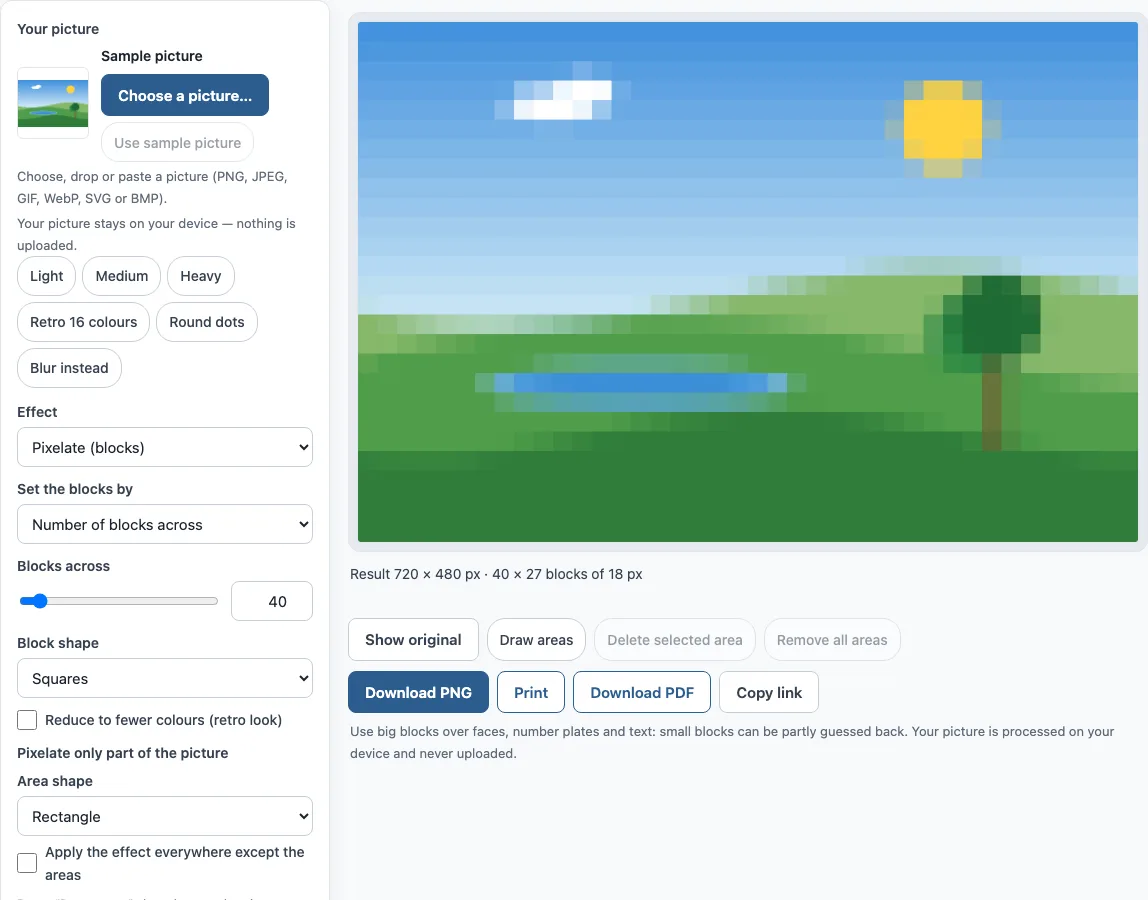
How to use the image pixelator
- Under Your picture, choose a file, or drag a picture onto the preview or paste one. Until then, a sample picture is shown.
- Under Effect, keep Pixelate (blocks) or choose Blur.
- Under Set the blocks by, pick Block size in pixels (2–200 px, default 16) or Number of blocks across (4–500, default 40). Adjust it with the slider or the number box.
- Under Block shape, choose Squares or Round dots. For round dots, pick a Background behind the dots colour (white by default).
- Optional: turn on Reduce to fewer colours (retro look) and set Number of colours (2–64, default 16).
- To pixelate only part of the picture, press Draw areas, choose an Area shape, and drag rectangles or ellipses over the parts you want. Move areas by dragging, resize them with the corner handles, and remove them with Delete selected or Remove all.
- Hold Show original to compare with the original. A short press toggles it.
- Under Download as, choose PNG or JPEG and download the result.
Start with a preset such as Light, Medium, Heavy, Retro 16 colours, Round dots, or Blur instead, then adjust from there. To print the result on one page, use Print or Download PDF; the paper size, orientation and margin are in the page settings.
How do I pixelate part of an image?
Press Draw areas and drag rectangles or ellipses over only the part you want changed. The effect applies inside the areas, and the rest of the picture stays as it is. If you draw no areas, the whole picture changes.
You can add several areas. The invert option reverses this, so the effect applies everywhere except inside the areas. This is useful when the subject should stay sharp and the background should be pixelated.
How to pixelate a face or licence plate?
Draw an area over the face or plate, and make it a little larger than the object. Edges of the object can give away its shape, so a margin helps. Use the same method for names, screens, and other text.
Use large blocks for anything sensitive. Small blocks can sometimes be partly guessed back, so choose a block size that makes the detail unreadable. Then check the result with Show original to confirm that nothing recognisable remains.
Can a pixelated image be unpixelated?
No. Pixelating replaces each block with one average colour, so the detail inside that block is gone. Nothing in the result keeps that detail, so it cannot be restored from the image.
Tools that claim to unpixelate a picture only make guesses, and those guesses may be wrong. If you need to hide something, use big blocks and do not rely on being able to reverse the effect later.
What is the difference between pixelate and blur?
Pixelate replaces the picture with square blocks, each filled with one average colour, so the result looks blocky. Blur smooths the picture with a soft spread instead of blocks. Both remove fine detail, but they look different.
Blur has two types: Gaussian (smooth) and Box (even). The Blur radius (px) ranges from 1 to 100, with a default of 12. Blurring large photos takes a few seconds. Choose pixelate for a clear, chunky style and blur for a gentler, softer look.
Is my photo uploaded?
No. The picture is processed in your web browser on your own device and is never uploaded. The areas you draw and the picture are not stored in the link.
What block size should I use?
Block size controls how much detail survives. You can set it in two ways: Block size in pixels (2–200 px, default 16), or Number of blocks across (4–500, default 40). The number of blocks across sets how many columns the grid has, so fewer blocks give a chunkier result.
For example, the 720 × 480 px sample at 40 blocks across gets 18 px blocks, making a grid of 40 × 27 blocks. Blocks start at the top-left corner, and the blocks at the right and bottom edges can be smaller. For hiding details, try a low number of blocks across and compare the result with Show original.
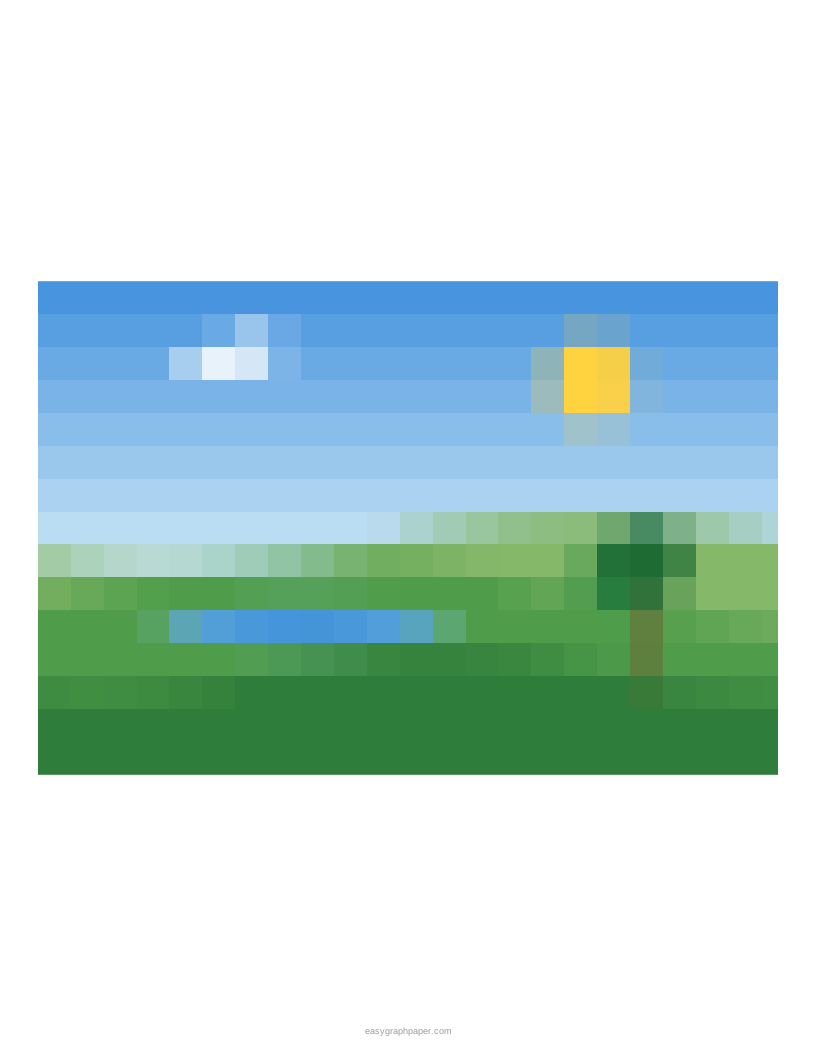
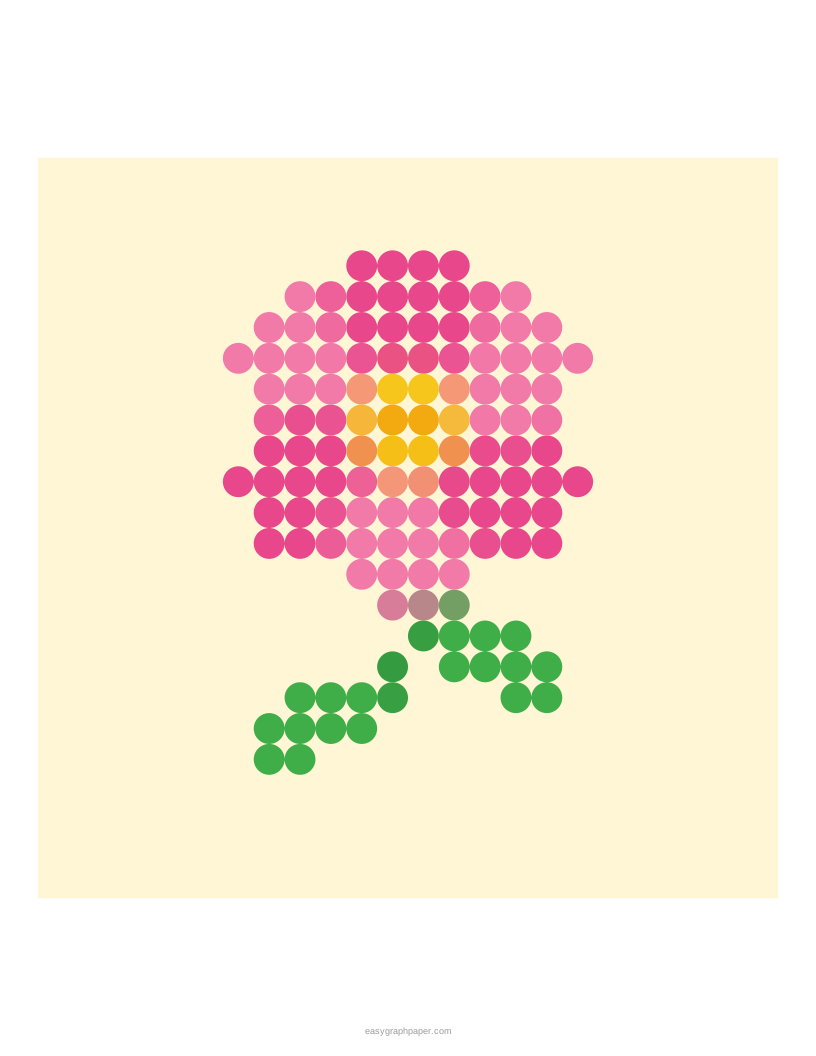
Examples made with this generator
Frequently asked questions
Is this image pixelator free to use?
Yes. It is free, requires no account, and works on phones and tablets.
Can I make round dots instead of squares?
Yes. Choose Round dots under Block shape. Each block becomes a dot as wide as the block, on the background colour you choose, which is white by default.
Can I make a pixel-art look with fewer colours?
Yes. Turn on Reduce to fewer colours (retro look) and set Number of colours from 2 to 64. The default is 16.
Which download format should I choose, PNG or JPEG?
PNG is the default and is lossless. JPEG gives a smaller file, and you can set JPEG quality (%) from 60 to 100, with a default of 92. Both download at the picture’s full original resolution, and the file name ends in “-pixelated”.
What happens if my photo is very large?
Photos up to 6000 pixels per side (36 megapixels) are used at full size. Larger photos are reduced, and the page tells you when this happens.
Will a phone photo appear sideways?
No. Phone photos are turned the right way up automatically.
Can I use the pixelated picture commercially?
Yes. The result is yours to use for personal, school and business purposes, for example in a blog post, a product listing or a video. Just make sure you have the rights to the photo you start from.
Related tools
- Pixel art maker: Use it when you want to draw your own pixel art, sprite or animation pixel by pixel.
- Photo mosaic maker: Use it when you want a picture built from many small images.
- Pixel art grid: Use it when you want printable grid paper to plan pixel art by hand.
- Cross stitch pattern maker: Use it when you want to turn a picture into a stitching chart.
- Perler bead pattern maker: Use it when you want a bead pattern made from a picture.
- Paint by numbers generator: Use it when you want a numbered colouring guide from a picture.
- Block poster maker: Use it when you want to print a picture as a big poster over several sheets.