Pixel Art Maker
Draw pixel art and sprites square by square, animate them, and download a sharp PNG or GIF.
The pixel art maker is a free drawing editor that runs in your web browser. Every square of the grid is one pixel, so you can build sprites, characters and icons one block at a time. Draw with a mouse, a finger or a pen, then export a PNG, a sprite sheet or an animated GIF. No account is needed, and it works on phones and tablets too.
The canvas starts at 16 × 16 pixels, and you can choose a preset from 8 to 128 pixels square or enter your own width and height up to 256. Grid lines are on by default, which helps when you are placing single pixels. This is a practical pixel art creator for quick sprites, 8 bit art and small animations: use it online as a sprite art maker, a pixel character maker or an 8 bit art maker for game art, with nothing to install.
How to use the pixel art maker
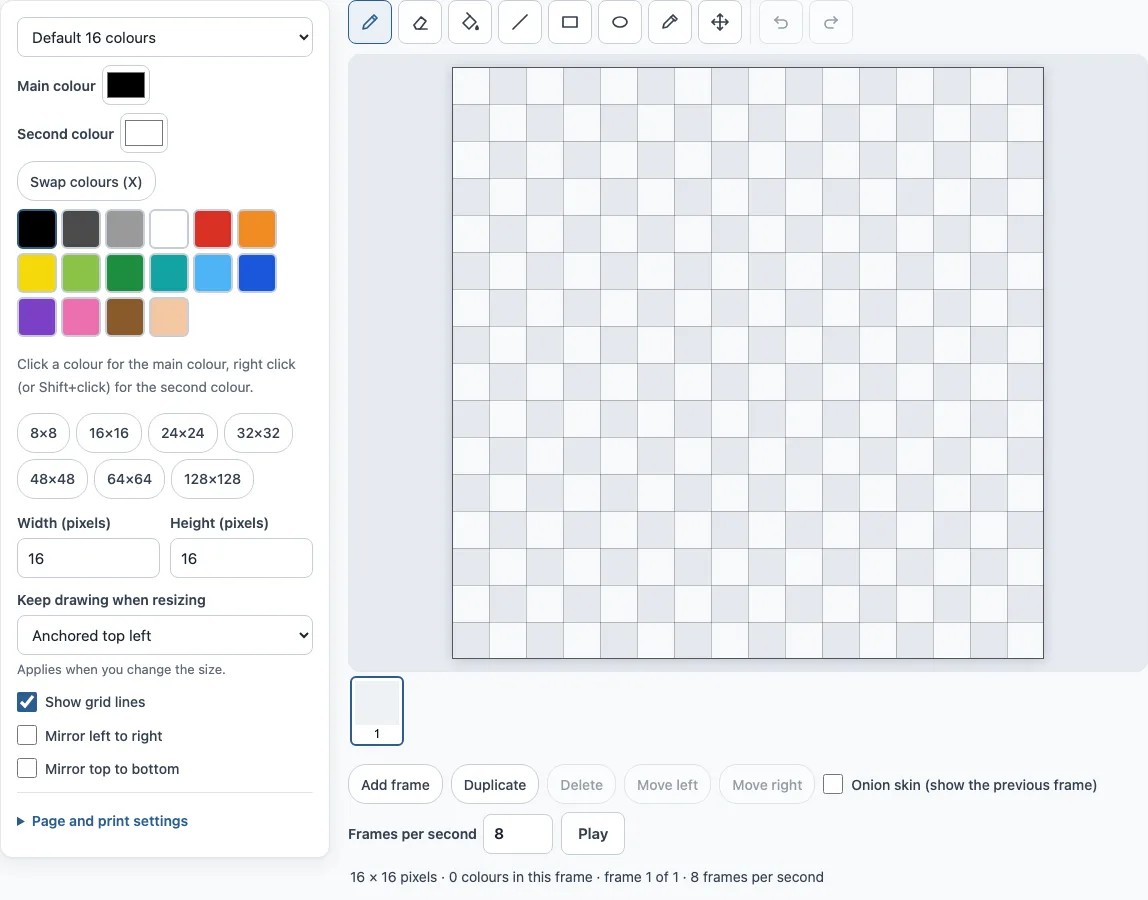
- Set the canvas size. Pick a preset such as 16 × 16 or 32 × 32, or type your own Width (pixels) and Height (pixels), each from 1 to 256.
- On a touch screen, draw with one finger; the page does not scroll while your finger is on the canvas, and Swap colours (X) switches to the second colour.
- Choose a palette. Use Default 16 colours, PICO-8, Game Boy, 1-bit black and white or Grayscale, or open a colour picker for any colour.
- Draw the outline with the Pencil (B). Use Fill (G) to colour large areas, and Line (L), Rectangle (R) or Ellipse (O) for shapes.
- Turn on Mirror left to right to draw symmetric characters or icons.
- For animation, use Add frame, Duplicate, Delete or Move left/right. Turn on Onion skin to see the previous frame, set Frames per second, then press Play to preview.
- Pick an Export size (the default is 10×), then press Download PNG, Sprite sheet PNG or Animated GIF.
Useful shortcuts include Eraser (E), Eyedropper (I) and Move (M). X swaps your two colours, and Ctrl/Cmd+Z undoes up to 150 steps. Your drawing is saved in your browser automatically. Copy link shares the current frame, up to 64 × 64. Print or Download PDF turns the drawing into a numbered chart.
What is 8 bit art?
8 bit art is the look of 1980s game consoles and home computers. It uses low resolution, a small fixed colour palette and visible square pixels. Common sprite sizes in this style are 8 × 8, 16 × 16 and 32 × 32. To make 8 bit art, work at a small size, limit yourself to a few colours such as PICO-8 or Game Boy, and let the square pixels show.
What size should pixel art be?
For most sprites, icons and characters, 16 × 16 or 32 × 32 is a good size. Small canvases are easier to finish, and each pixel has more effect on the result. Larger sizes such as 64 or 128 pixels allow more detail, but they take longer and need careful shading. Decide on a size before you start, because a sprite that is too small for its detail will look cramped. If you change your mind, Keep drawing when resizing lets you anchor the existing art top left or in the centre.
How to make pixel art
Good pixel art follows a few habits. Start small and pick a limited palette so the colours stay consistent. Draw a clear outline first, then fill the large areas. Add a darker shade on one side for shadow and a lighter one on the opposite side for highlight, so the shape looks solid. Remove stray single pixels, which usually look like noise rather than detail. Zoom in while you draw, then check the result at 1× size, because that is how it looks on a small screen.
How do I save pixel art without blur?
Blur appears when a small image is stretched or smoothed by an editor. The export avoids this by turning each pixel into a crisp block of screen pixels at the Export size you choose, with no smoothing. Pick a whole-number multiple such as 8×, 10× (the default) or 16×. A 16 × 16 drawing at 10× becomes a 160 × 160 PNG. If you resize the file in another program, turn off smoothing, or the edges will soften.
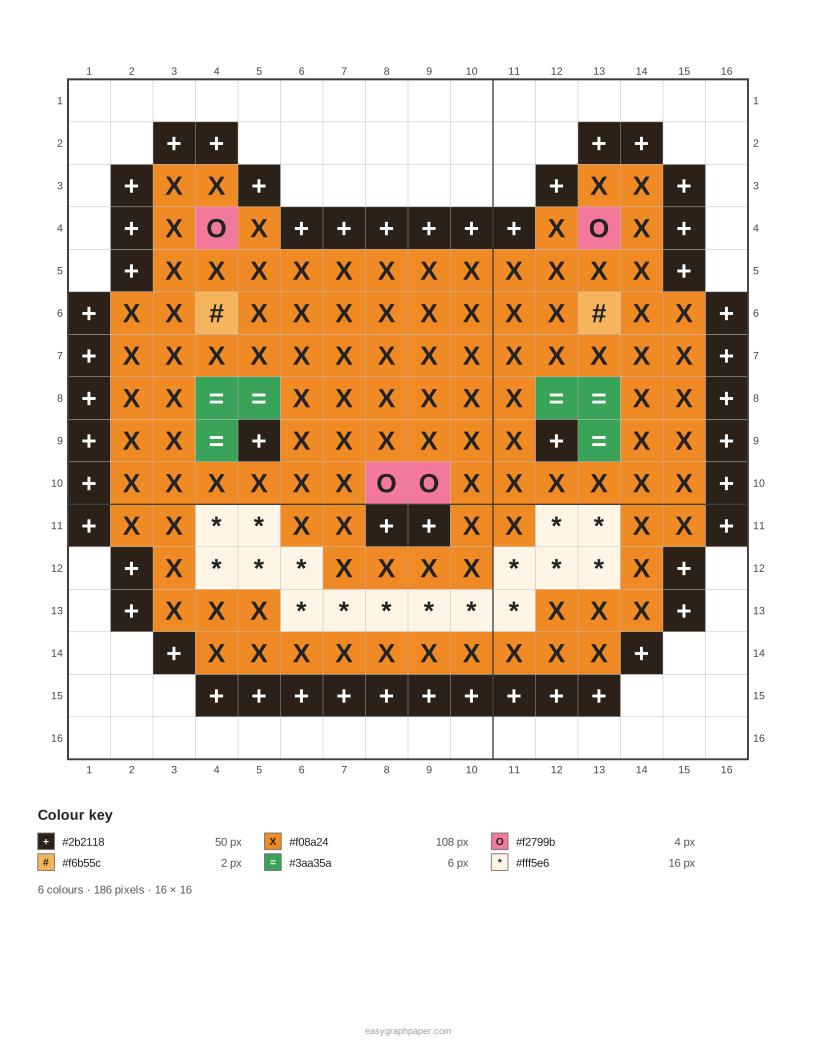
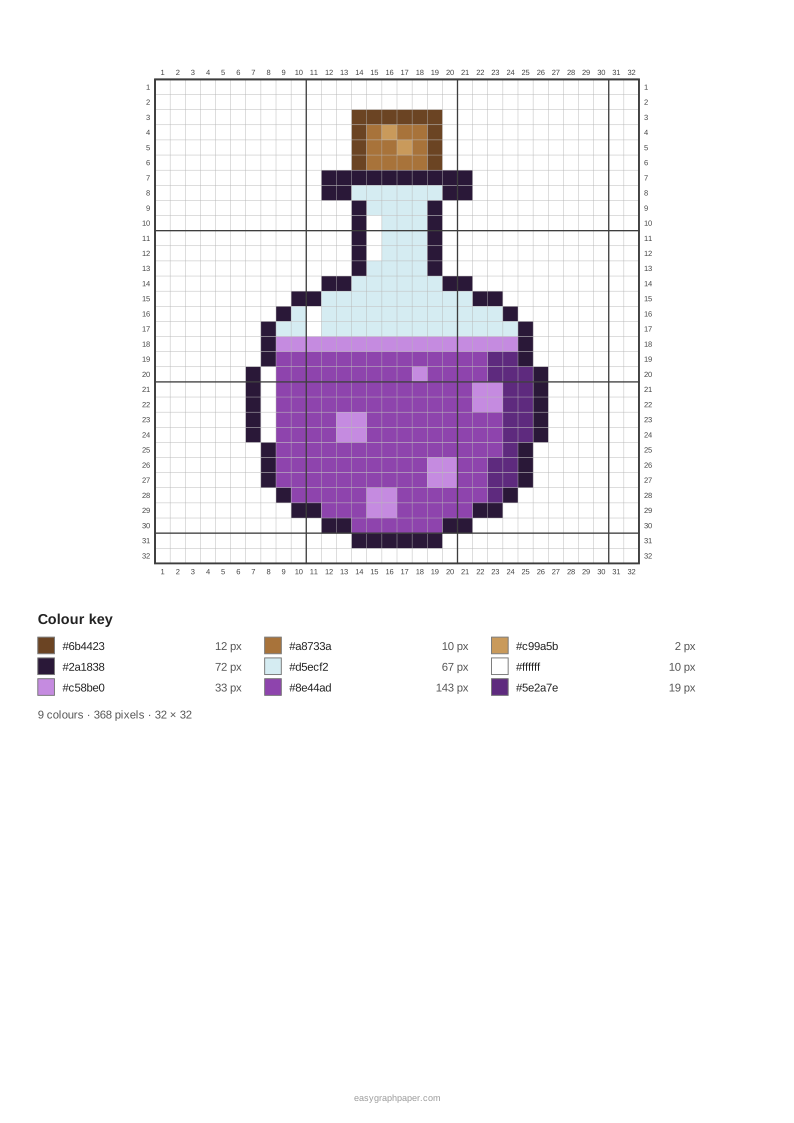
Examples made with this generator
Frequently asked questions
Is the pixel art maker free?
Yes. It is free, needs no account, and runs in your web browser. Your drawing is also saved in the browser so it is there when you return.
Can I use what I make commercially?
Yes. Your drawings are your own work: use them in games, videos, prints or crafts you sell, for example on Etsy. If you start from someone else’s picture or character, make sure you have the rights to it.
How do I make an animated pixel art GIF?
Add frames with Add frame or Duplicate, and change the drawing on each one. Set Frames per second from 1 to 24 (the default is 8), and use Onion skin to see the previous frame while you draw. Press Play to preview, then choose Animated GIF. The GIF includes all frames (up to 64), loops and has a transparent background.
Can I turn pixel art into a perler bead or cross stitch pattern?
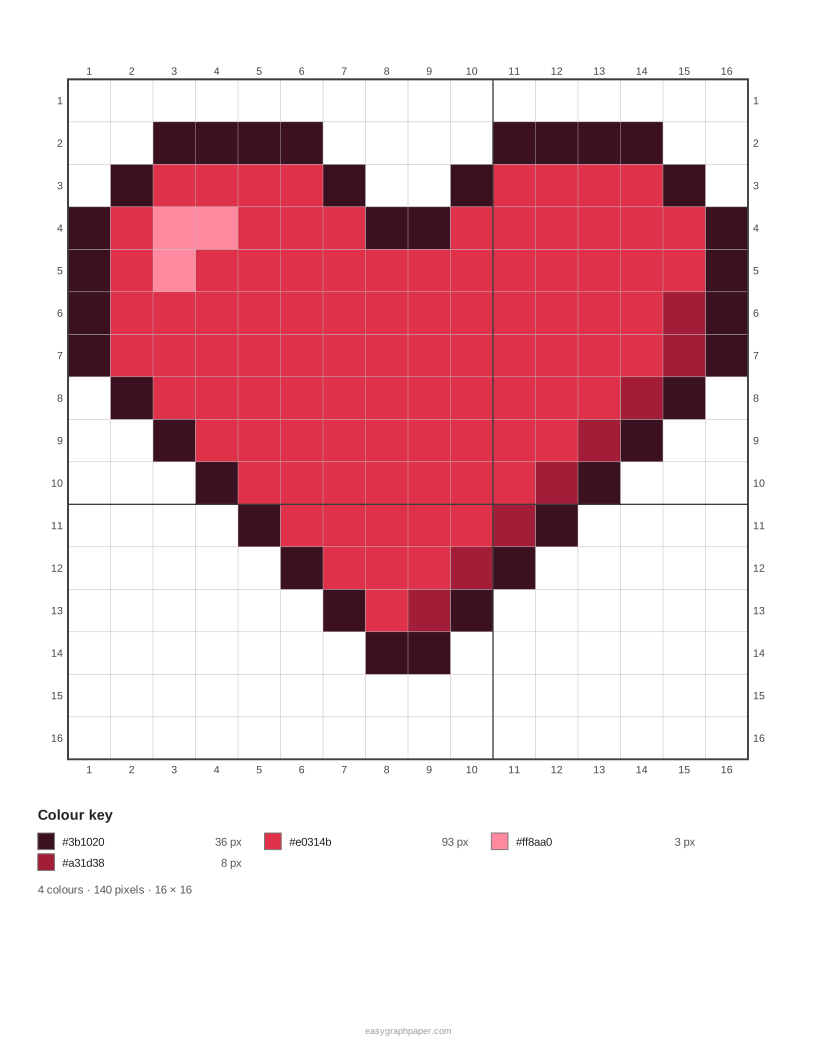
Yes. Use Print or Download PDF to get a numbered chart with a bold line every 10 squares, row and column numbers, optional symbols and a colour key showing each colour’s pixel count. Choose a cell size from 2 to 10 mm (the default is 5 mm). A 32 × 32 drawing at 5 mm takes 3 Letter pages, including the key. The same chart also works as a knitting pattern.
Is anything uploaded?
No. Your drawing stays in your browser, and a picture you open is read on your own device and never uploaded.
Does it work on a phone or tablet?
Yes. You can draw with a finger or a pen on phones and tablets, as well as with a mouse.
Can I start from an existing picture?
Yes. Open an image places a PNG, GIF or JPEG into the grid so you can keep editing a sprite. Images up to 256 × 256 pixels keep their own size. Larger images are fitted to the canvas.
Related tools
- Pixelate image: turn a photo into blocky pixels or hide parts of it.
- Knitting chart maker: the same kind of editor with stitch-shaped squares, for colorwork and lace charts.
- Pixel art grid: print empty pixel grids when you plan pixel art on paper.
- Perler bead pattern maker: turn any picture into a fuse bead pattern with real bead colours.
- Cross stitch pattern maker: turn a photo into a cross stitch chart with DMC floss colours.
- Photo mosaic maker: build one big picture out of many small photos.
- 10x10 grid: use a simple 10 by 10 grid for small designs or layouts.