Printable Pixel Art Grid
Set the number of squares across and down and get a page-filling grid of perfectly square cells to colour in.
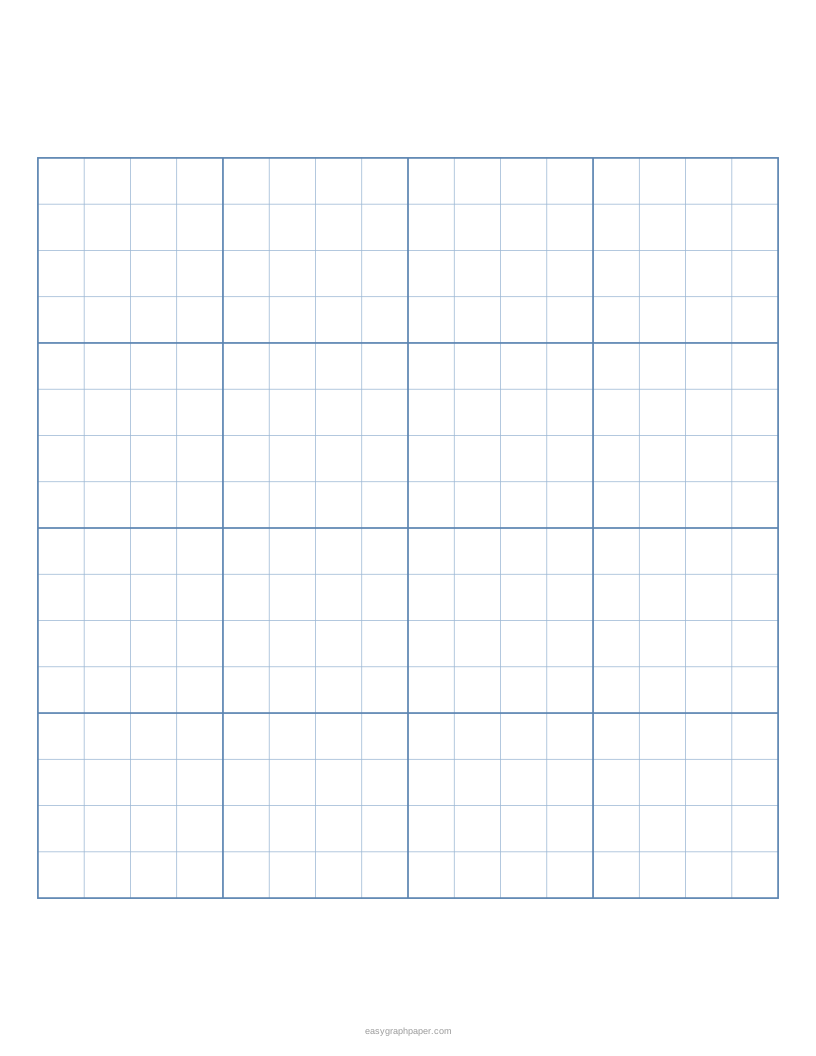
A pixel art grid is a square grid with a fixed number of cells, such as 16 × 16 or 32 × 32. Each cell is one pixel, and you colour it in with pencils or markers. This free pixel art grid tool creates a printable grid in your browser, with no sign-up and no download.
Choose how many squares go across and down, from 2 to 400 each, or pick a preset: 8x8, 16x16, 24x24, 32x32 or 64x64. The tool calculates the square size so the grid fills the page and every cell stays square. You can use the grid for planning pixel art before drawing it on a computer, colouring activities, Perler or fuse bead designs, cross stitch, and Minecraft builds.
How to use the pixel art grid tool
- Enter the number of squares across and down. For a standard square grid, use the same number in both boxes, such as 16 and 16. Or click a preset: 8x8, 16x16, 24x24, 32x32 or 64x64.
- Check the preview. The line under it reports the grid and the cell size, for example 16 × 16 squares of 12.24 mm on US Letter.
- Set the heavier lines: none, or every 2, 4, 5, 8 or 10 squares. The presets choose every 4 for 16 × 16 and every 8 for 32 × 32 and 64 × 64.
- Turn on numbers along the top and left edges if you want to find cells by row and column: every line, every 5 or every 10 squares.
- Choose a line colour and line weight. Colour presets include light blue, grey, black, green, red and purple, and you can enter any custom colour. Weights are fine, normal or bold.
- Pick a paper size and orientation, such as US Letter or A4, in portrait or landscape.
- Under Page and print settings, set the margin, an optional title, an optional Name and Date line, and the number of identical pages (1 to 50).
- Click Print, Download PDF, SVG or Copy link.
Print at 100 % or “Actual size” (not “Fit to page”) so the cells come out at the size shown under the preview. Copy link stores all your current settings, so you can recreate or share the same sheet later.
How to make a pixel art grid
A pixel art grid is made by dividing a square into equal rows and columns, so that each cell is one pixel. The number of cells across and down sets the resolution of your picture. A 16 × 16 grid has 256 pixels to fill, and a 32 × 32 grid has 1,024.
The cells must be square and the same size everywhere. If they are not, the picture will look stretched when you colour it or transfer it to a computer. This tool keeps every cell square by building the grid from whole squares and centring it inside the margins, so the outer edge may leave a small strip of blank paper.
What size should my pixel art be?
Classic sprite sizes are 8x8, 16x16 and 32x32 pixels. Smaller grids are quicker to fill and suit icons, while larger grids allow more detail. Choose the size based on how much detail your design needs, not on how big your paper is.
Printed size changes with the paper and the grid. On US Letter with 10 mm margins, a 16 × 16 grid gives cells of 12.24 mm, a 32 × 32 grid gives 6.12 mm, and a 64 × 64 grid gives 3.06 mm. On A4, a 16 × 16 grid gives 11.87 mm cells. Smaller cells are harder to colour neatly with pencils, so choose a grid size with cells you can comfortably fill.
If your design is not square, set different numbers across and down. For example, 32 × 48 suits a tall character.
How to make pixel art on a printed grid
Sketch the outline lightly in pencil, staying on the cell edges. Fill the outline cells with the darkest colour first, then the large areas, and add highlights last. Colour each cell completely so the picture reads cleanly from a distance; a limited palette of four to eight colours keeps small sprites readable. The edge numbers help when you copy a design cell by cell from a reference or transfer it to a drawing program.
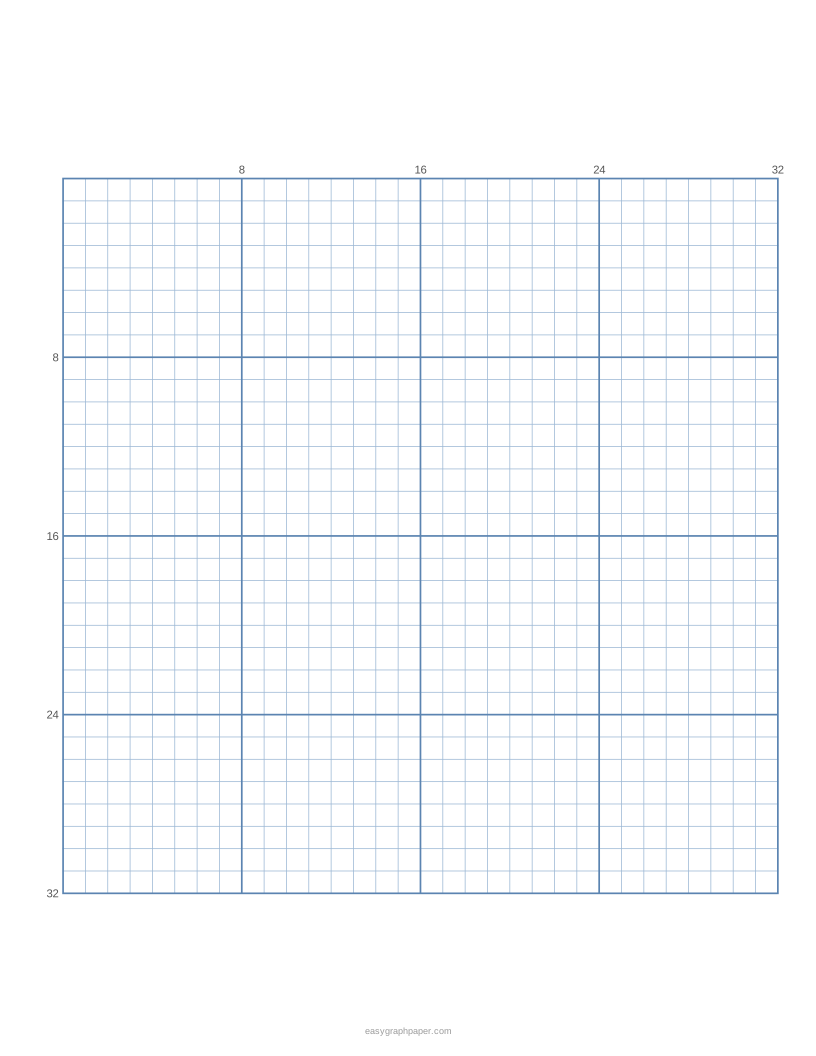
Examples made with this generator
Frequently asked questions
What size grid is best for beginners?
A 16 × 16 grid is a good first choice, and 8 × 8 is even quicker to fill. Small grids keep the design manageable, so you can finish a picture and learn from it before moving to 32 × 32.
How do I make a pixel art template?
Set the number of squares across and down, add a title, and choose your options for numbers and heavier lines. Click Download PDF to get a template at exactly your paper size, or click Print to send it straight to your printer.
Can I make a non-square pixel art grid?
Yes. Enter different numbers across and down, such as 32 across and 48 down. The line under the preview shows how many squares fit on the page.
Can I print more than one copy of the grid?
Yes. Under Page and print settings, set the number of pages in the PDF, from 1 to 50. Every page is identical, so this is useful for class handouts or several drawing attempts.
Which paper sizes can I use for a printable pixel art grid?
The tool offers US Letter, A4, US Legal, Tabloid, A3 and A5, in portrait or landscape. The page remembers the paper size you chose last time in your browser.
Related paper templates
- 10x10 grid: Use it for a small, simple grid when you want fewer cells to fill.
- Cross stitch graph paper: Use it when you are planning a stitched design on a fabric count grid.
- Grid paper: Use it for general squared paper for drawing, maths or layouts.
- Graph paper generator: Use it when you need a standard graph paper sheet with your own settings.
- Hex grid paper: Use it for hexagonal designs, maps or games that do not use square cells.
- Dot grid paper: Use it when you want dots instead of lines for sketching and layout.