Paint by Numbers Generator
Add a photo, choose how many colours and how detailed, and print your own paint-by-numbers sheet.
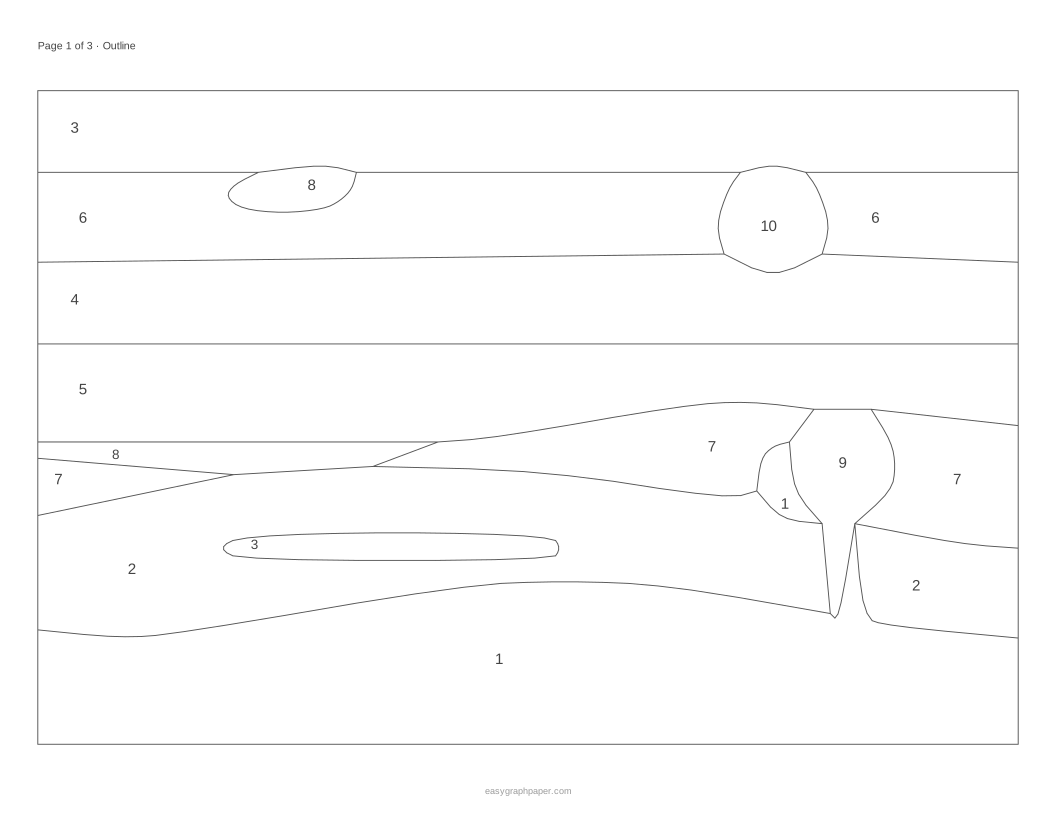
The paint by numbers generator turns a photo into a printable paint-by-numbers sheet. It reduces the picture to a set number of colours, outlines each area, and writes a number inside every area that matches a colour in the key. The tool is free, needs no account, and runs in your browser, so your picture is never uploaded. It works on phones and tablets as well as computers.
You can use it as a color by number generator for children or as a custom paint by number generator for a family photo. The PDF can include an outline page to paint on, a colour key with numbered swatches and hex codes, and a coloured preview of the finished picture. Settings let you choose between an easy sheet with a few big areas and a detailed one for adults.
How to use the Paint by numbers generator
- Add a picture. Click the picture button, drag a file onto the preview, or paste an image from the clipboard. Until you add your own, the built-in sample landscape is shown. Click “Use sample picture” to bring it back at any time.
- Set the detail. Choose a value from 40 to 300 cells across. Higher values trace the picture more finely, but the numbers get smaller.
- Choose the number of colours. Pick a value from 2 to 30, or use a preset: Easy (8 colours, big areas), Medium (12 colours), Detailed (20 colours) or Kids (6 colours).
- Set the smallest area. Pick a value from 2 to 400 cells. Larger values merge small patches into bigger areas that are easier to paint.
- Adjust the outlines. Set the smoothing from 0 to 4, and choose an outline width of 0.15, 0.25 or 0.4 mm.
- Check the page settings. Choose a paper size, portrait or landscape, margin, an optional title and the number of copies. Tick “Add a coloured preview page” if you want one.
- Output the sheet. Press Print to print all pages, or Download PDF to get all pages in one file.
Copy link saves your settings in the page address, so the link shares the settings but not the picture.
How to make a paint by number from a photo
A paint-by-numbers sheet is a simplified version of a photo. The tool first reduces the picture to the number of colours you choose, then joins neighbouring pixels of the same colour into one area.
Next, it merges any area smaller than your minimum size into the neighbouring area it touches most. It then smooths the borders and writes the colour’s number inside each area. The number is placed at the point farthest from the border, so it sits in the widest part of the shape where it is easiest to read.
Pictures with clear shapes and good contrast work best. When neighbouring colours are close to each other, they can merge into one area, and the outlines become harder to follow.
What do detail, smallest area and smoothing change?
Detail sets how many cells across the picture is traced on. At 60 to 80 cells the shapes are simple and the numbers large; at 200 or more, small features such as windows or eyes survive, but the sheet takes much longer to paint. Smallest area works against detail: every patch below that many cells is absorbed into the neighbour it shares the longest border with, so raising it removes fiddly specks. Smoothing rounds off the stair-steps that come from tracing on a grid, so the lines look hand-drawn rather than pixelated; 0 keeps them square. A bold outline is easier for children to follow.
How many colours should I use?
For children, use 6 to 8 colours with big areas. For adults, 15 to 30 colours with more detail is a good range. Fewer colours mean fewer paints to mix and bigger areas to fill. More colours give finer detail but more numbers to track.
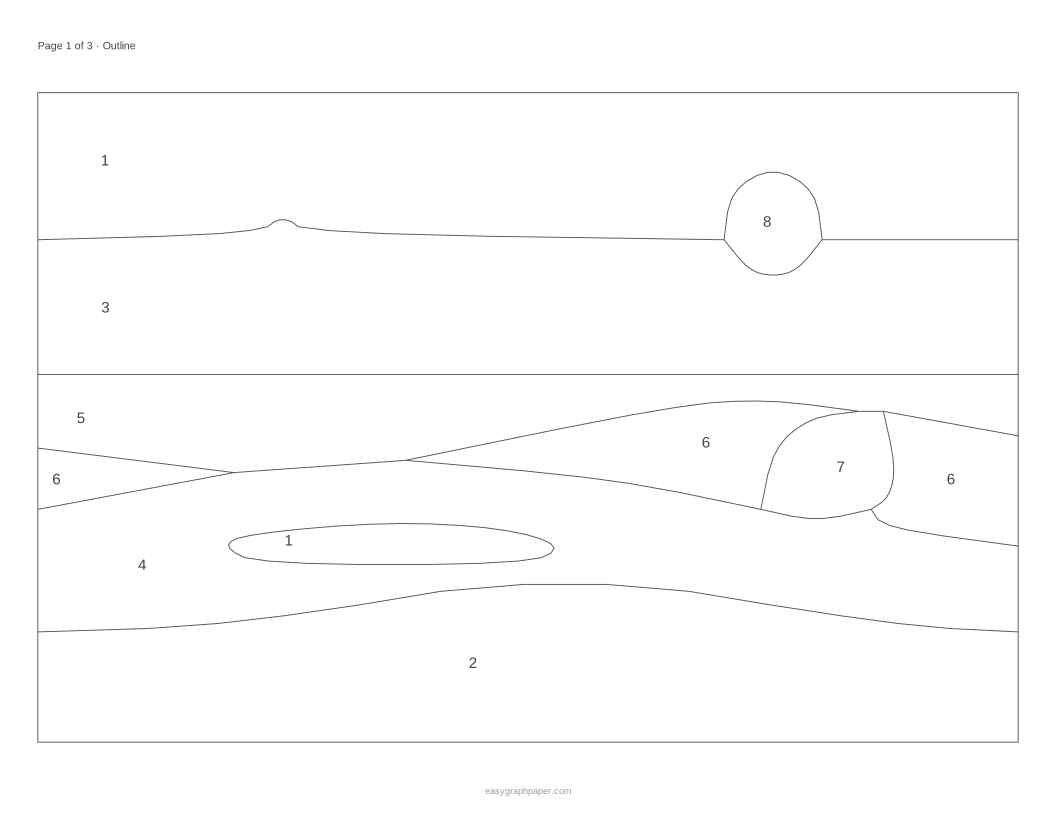
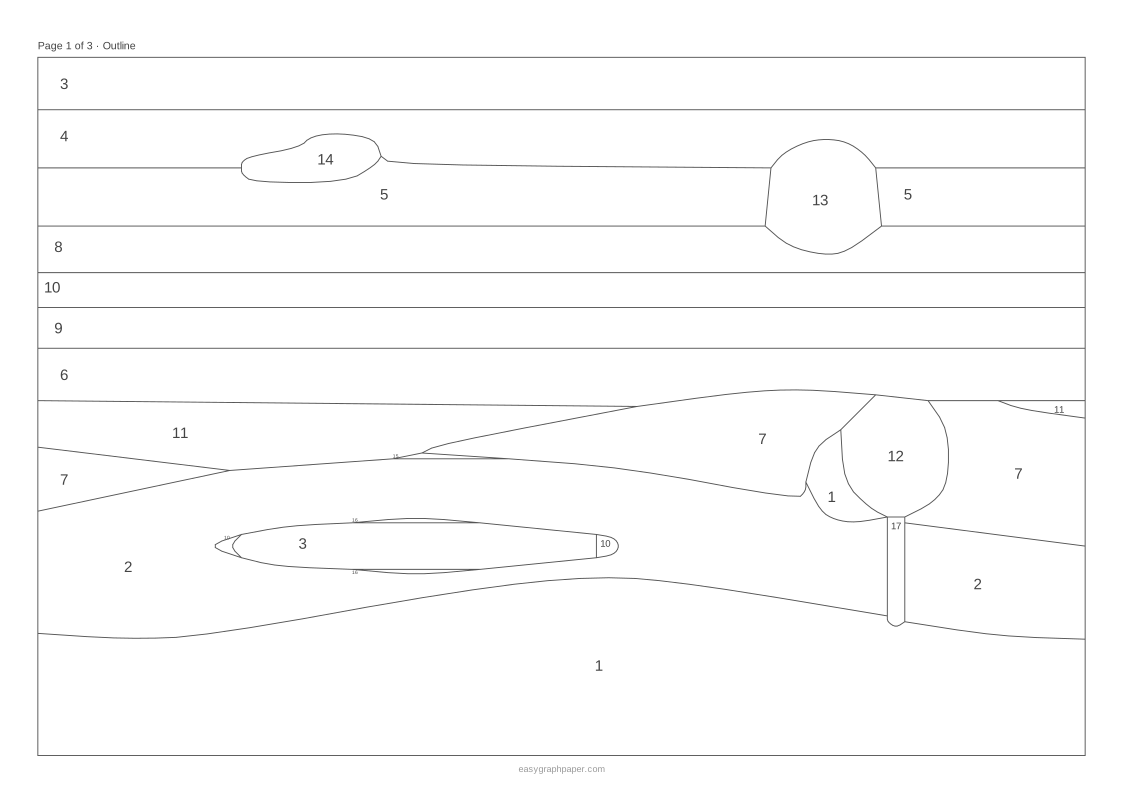
The number of colours you set is a maximum, not a guarantee. In the sample landscape at the default settings (12 colours, detail 120, smallest area 20), the result has 17 numbered areas in 10 colours. The Easy preset gives 11 areas in 8 colours. If the sheet has fewer colours than you expected, raise the number of colours or lower the smallest area.
Examples made with this generator
Frequently asked questions
Can I print it?
Yes. Choose a paper size first, such as A4, US Letter or Tabloid (11 x 17 in). Press Print to print all pages, or use Download PDF to save them in one file. Heavier card stock stands up better to paint.
Can children use it for color by number?
Yes. Use the Kids preset (6 colours), or set 6 to 8 colours with big areas. Larger areas are easier for small hands to fill neatly.
Is my photo uploaded anywhere?
No. The picture is processed only in your browser and is never uploaded. Only the settings are stored in the page address.
What paint should I use?
Mix your paints to match the swatches on the colour key page, or use the hex codes in a drawing program to find the right colours. Acrylic paint covers the printed lines best.
Is the paint by number generator free?
Yes. The tool is free, needs no account, and works on phones, tablets and computers.
Can I use it on a phone?
Yes. The generator works on phones and tablets as well as computers. Pick a photo from your gallery, adjust the settings, and download the PDF to print later or send to a printer.
Why are some areas so small?
Raise the smallest area setting, or lower the detail. Both merge tiny patches into their neighbours, giving fewer and larger areas to paint.
Related tools
- Cross stitch pattern maker: use it when you want a picture turned into a stitching chart.
- Perler bead pattern maker: use it when you want a picture laid out as a bead pattern on a grid.
- Filet crochet chart maker: use it when you want a chart for filet crochet work.
- Block poster maker: use it to print a photo as a big poster over several sheets of paper.
- Pixel art grid: use it when you want to draw pixel art on a grid.
- Perspective grid: use it when you need guidelines for drawing in perspective.