Cross Stitch Pattern Maker
Add a picture, choose the size and number of colours, and get a printable cross stitch chart with a DMC floss key.
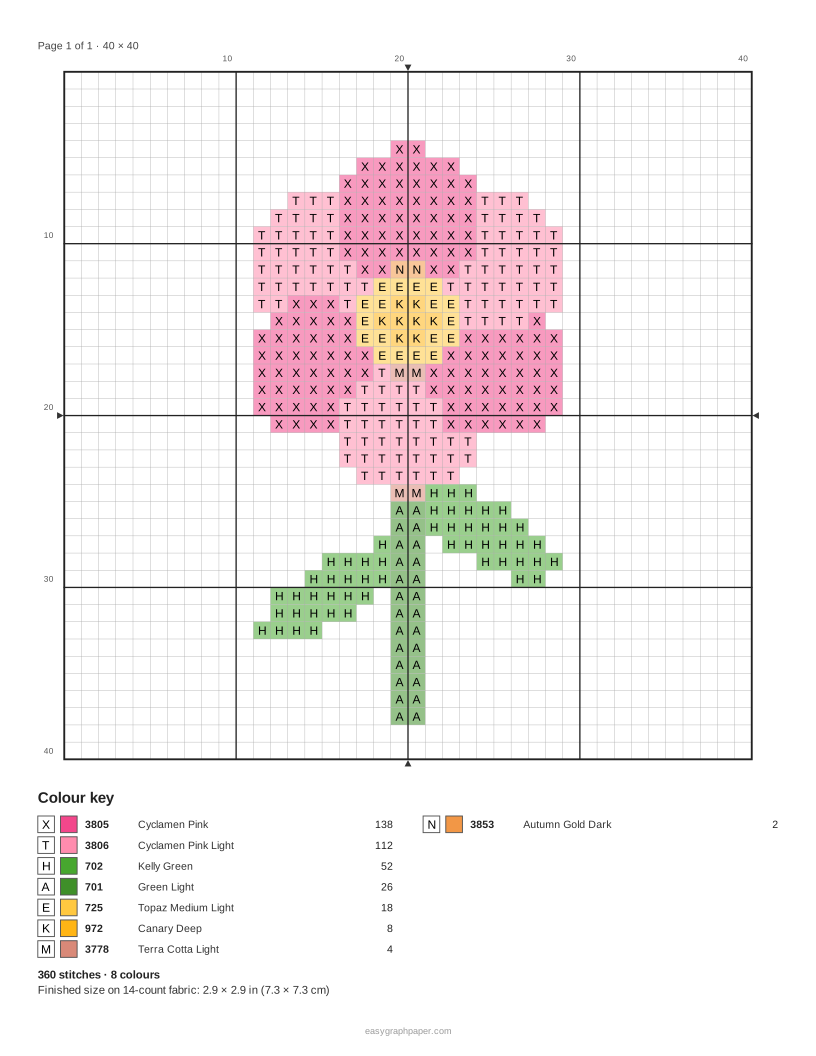
The cross stitch pattern maker turns a photo or drawing into a counted cross stitch chart. It averages the picture into a grid of stitches, matches each stitch to a DMC embroidery floss colour, and prints the chart with a colour key. The tool runs in your browser, is free, and needs no account. You can use it on a phone, tablet or computer.
Your picture stays on your device. It is processed in the browser and is never uploaded. You can adjust the stitch count, colour limit and chart style, then download a PDF, print the pages or save a PNG of the coloured chart. A simple picture with clear shapes and strong contrast usually gives the cleanest result.
How to use the cross stitch pattern maker
- Add your picture. Click the picture button, drag a file onto the preview, or paste an image from the clipboard. To try the tool first, use the built-in sample picture. ‘Use sample picture’ brings it back at any time.
- Crop the picture to your subject before you add it, using any image editor, so the background does not take up stitches.
- Set the width in stitches, from 10 to 300. The height follows the picture’s proportions. Start with 40 to 80 stitches wide.
- Choose the palette: DMC floss or free colours.
- Set the maximum number of colours, from 2 to 60. Try 10 to 20 colours to start.
- Turn on dithering if you want in-between shades made from two colours. Turn on ‘Remove stray single stitches’ to clean up lone stitches.
- Pick a chart style: symbols on light colour, symbols only, or full colour.
- In the colour key under the preview, press ‘Leave out’ next to any colour you do not want to stitch, such as the background.
- Under Page layout, choose ‘Whole chart on one page’ or ‘Fixed size, spread over pages’ (then pick the size of one square). Set the fabric count (11 to 28) to see the finished size.
Presets such as ‘40 stitches wide’ and ‘Big squares over pages’ fill in these settings for you. Paper size, orientation, margin, title and copies are under the page settings. Use Print for all pages, Download PDF for one file, or Copy link to share your settings.
How to make your own cross stitch pattern
A cross stitch pattern is a grid where each square is one stitch. To make one from a picture, the tool lays a grid over the picture and gives each square the average colour of the part of the picture it covers, then swaps that colour for the nearest floss colour. Shapes have to be large enough to survive at the stitch count you choose: fine hair or tiny details blur, so pick a picture with a clear subject and crop it first.
Choose the size. The stitch count decides how much detail you keep. A width of 40 to 80 stitches gives a recognisable image that is still practical to stitch; higher numbers keep more detail but add many more stitches and pages.
Choose the colours. Fewer colours make a bolder, simpler design, while more colours give smoother shading. Dithering mixes stitches of two colours to imitate shades that are not in the palette, which looks soft from a distance. ‘Remove stray single stitches’ changes a lone stitch with no same-colour neighbour to the most common neighbouring colour, so you do not have to start a new thread for one stitch. Leaving out the background keeps those squares as unstitched fabric.
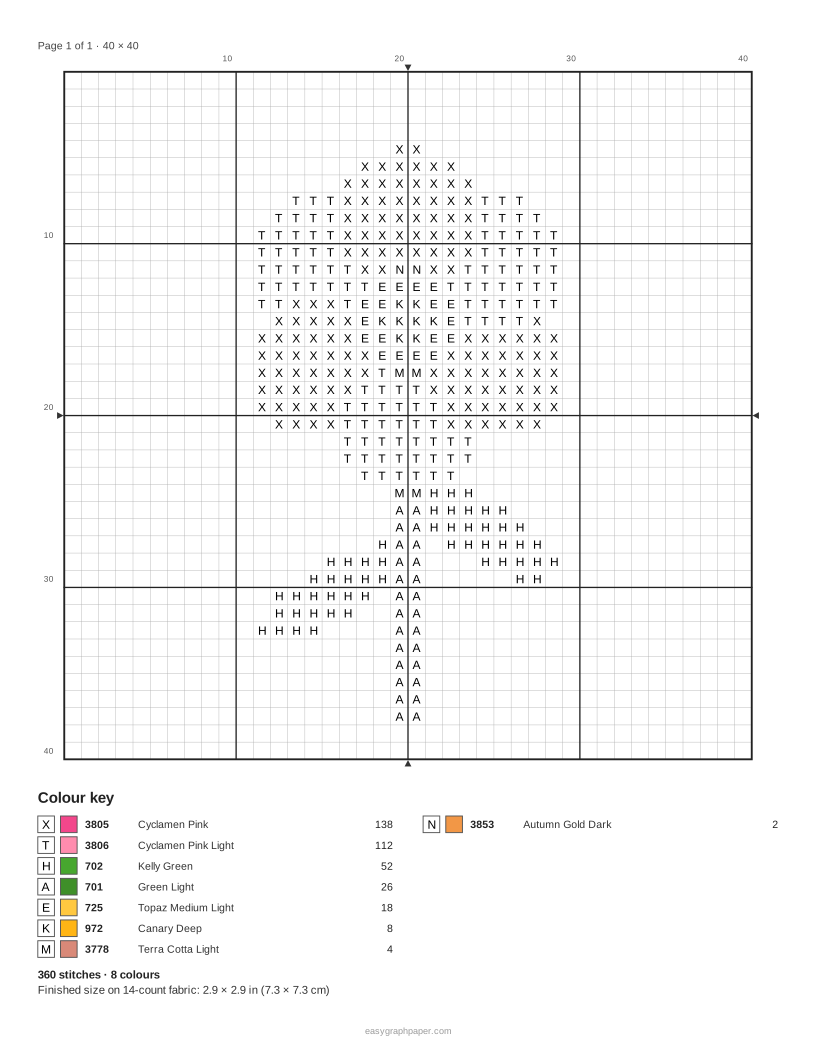
Print and stitch. The chart has a bold line every 10 stitches with column and row numbers, so you can keep your place, and small arrows mark the centre column and row, so you can start in the middle of the fabric. The colour key lists each symbol, DMC number, colour name and the number of stitches in that colour. For a large design, fit the chart over several pages at a fixed square size.
What size will my cross stitch be?
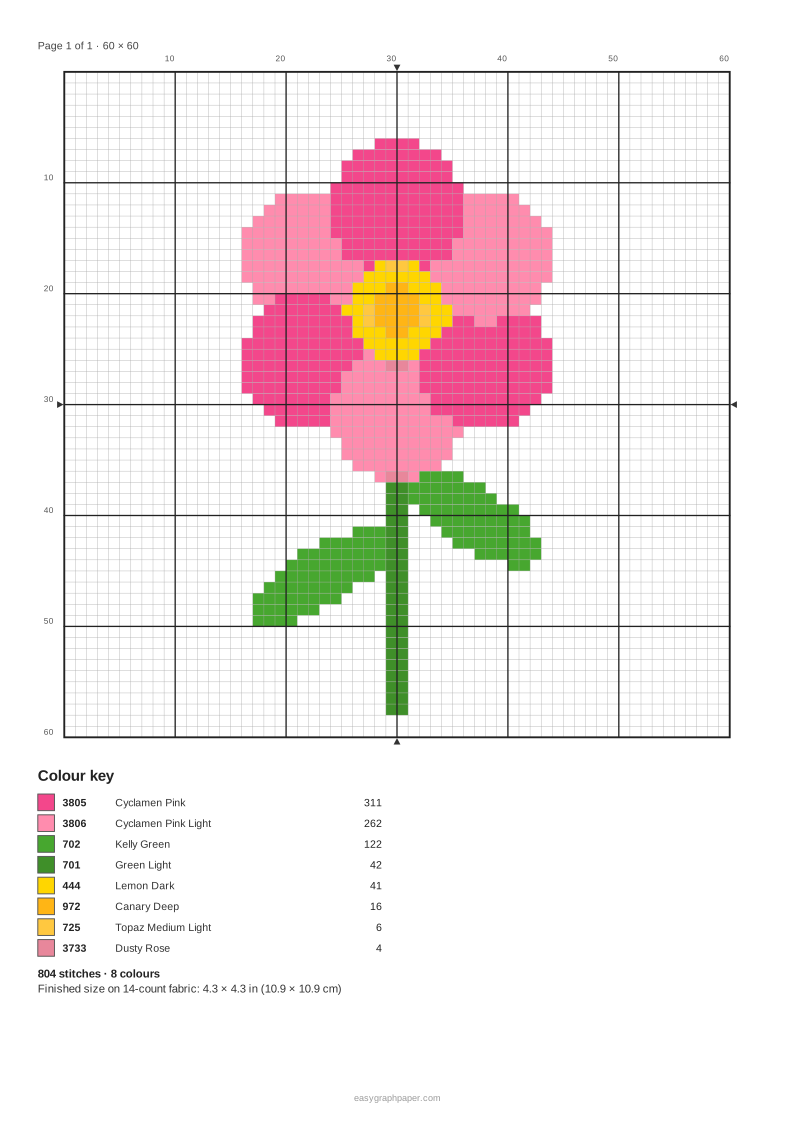
Finished size equals stitches divided by fabric count. For a chart 60 stitches wide on 14-count Aida, the size is 60 ÷ 14 = 4.3 in (10.9 cm). On 18-count fabric, the same chart is 60 ÷ 18 = 3.3 in wide. A higher fabric count gives a smaller finished piece from the same chart. The finished size for the chosen fabric count is printed on the colour key page.
Which DMC colours do I need?
The tool matches each stitch to the nearest DMC colour using the CIEDE2000 formula in the Lab colour space, a standard measure of how different two colours look to the eye. The DMC list has 454 colours, including White, Ecru and B5200. The colour matches are approximate, because screens show colours differently from thread. The colour key tells you exactly which DMC numbers to buy and how many stitches of each. Lower the maximum number of colours to reduce the number of skeins you need.
Examples made with this generator
Frequently asked questions
Is the cross stitch pattern maker free?
Yes. The tool is free and needs no account. It works on phones, tablets and computers.
Is my picture uploaded anywhere?
No. The picture is processed only in your browser and is never uploaded. The settings are stored in the page address, not the picture, so Copy link shares your settings only.
Can I use colours other than DMC?
Yes. Choose the free palette instead of DMC floss to use the tool’s own colours.
How do I keep the background out of my pattern?
Press ‘Leave out’ next to the background colour in the colour key under the preview. Those squares stay as unstitched fabric in the chart.
How do I print the pattern at a set square size?
Set Page layout to ‘Fixed size, spread over pages’ and choose the size of one square, from 2.5, 3, 3.5, 4 or 5 mm, 1/8 in or 1/10 in. Then choose your paper size and orientation under the page settings, and use Print or Download PDF.
What picture works best?
A simple picture with clear shapes and strong contrast works best. Crop the picture to the subject first, and start with 40 to 80 stitches wide.
Can I save my settings and come back later?
Yes. Click Copy link to copy a link that holds your settings. Open it later to use the same settings, though you will need to add the picture again.
Related tools
- Cross stitch graph paper: Use blank stitch grids when you want to draw a design by hand.
- Perler bead pattern maker: Use this for turning a picture into a bead pattern with a similar grid approach.
- Pixel art grid: Use this to plan a pixel design on a square grid.
- Filet crochet chart maker: Use this to create a chart for filet crochet.
- Paint by numbers generator: Use this to split a picture into numbered areas to paint.
- Grid paper: Use printable grid paper for sketching layouts.
- 10x10 grid: Use this for a simple 10 by 10 square grid.