Block Poster Maker
Add a picture, choose how many sheets across and down, and print a block poster you glue together.
How to use the block poster maker
- Add your picture. Click the picture button, drag a file onto the preview, or paste an image from the clipboard. PNG, JPEG, GIF, WebP and other formats your browser can open all work. Until you add your own, a built-in sample picture is shown. ‘Use sample picture’ brings it back at any time.
- Set the grid. Choose sheets across and sheets down, from 1 to 10 each.
- Set the overlap. Choose between 0 and 30 mm for the strip shared by neighbouring sheets. The default is 10 mm.
- Choose the fit. Keep the whole picture, or fill the poster area and crop the edges.
- Pick the paper. Select Letter, A4, Legal, Tabloid, A3 or A5, then set portrait or landscape and the margin.
- Add extras. Turn on dashed cut lines, sheet labels or the assembly guide page. Under the page settings you can also set the number of copies.
- Check the preview, then output. Choose Print (all pages), Download PDF (all pages in one PDF), or Copy link.
Copy link shares your settings, not your picture, so the person you send it to will need to add their own image. Print at 100 % / Actual size so the sheets keep the sizes the tool calculated.
How to print a poster on multiple pages
To print a poster on multiple pages, the picture is divided into a grid, and each cell is printed on its own sheet. Each sheet carries one piece of the picture plus a shared strip, so the pieces line up when you join them.
The picture is first scaled to the full poster area while keeping its proportions. With keep the whole picture, some white space may remain on two sides. With fill, the edges are cropped instead. The tool uses up to 3,000 pixels on the long side of your file, so a large, sharp photo prints best, because each sheet shows only part of it.
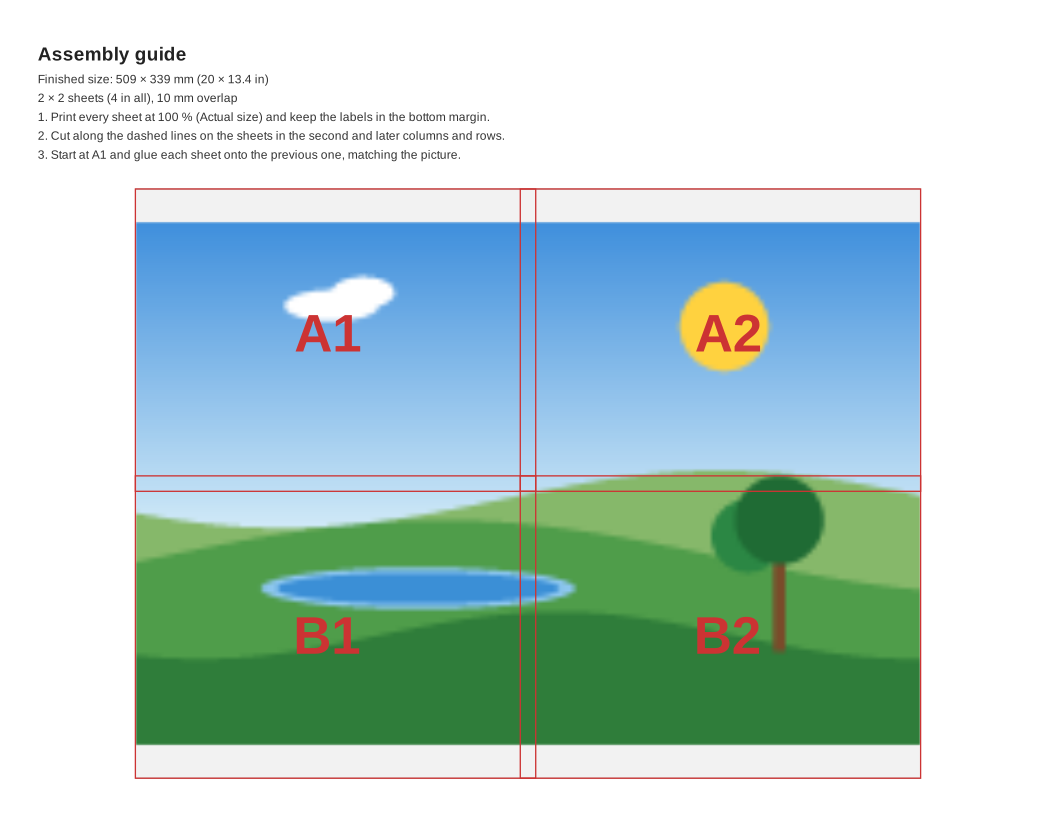
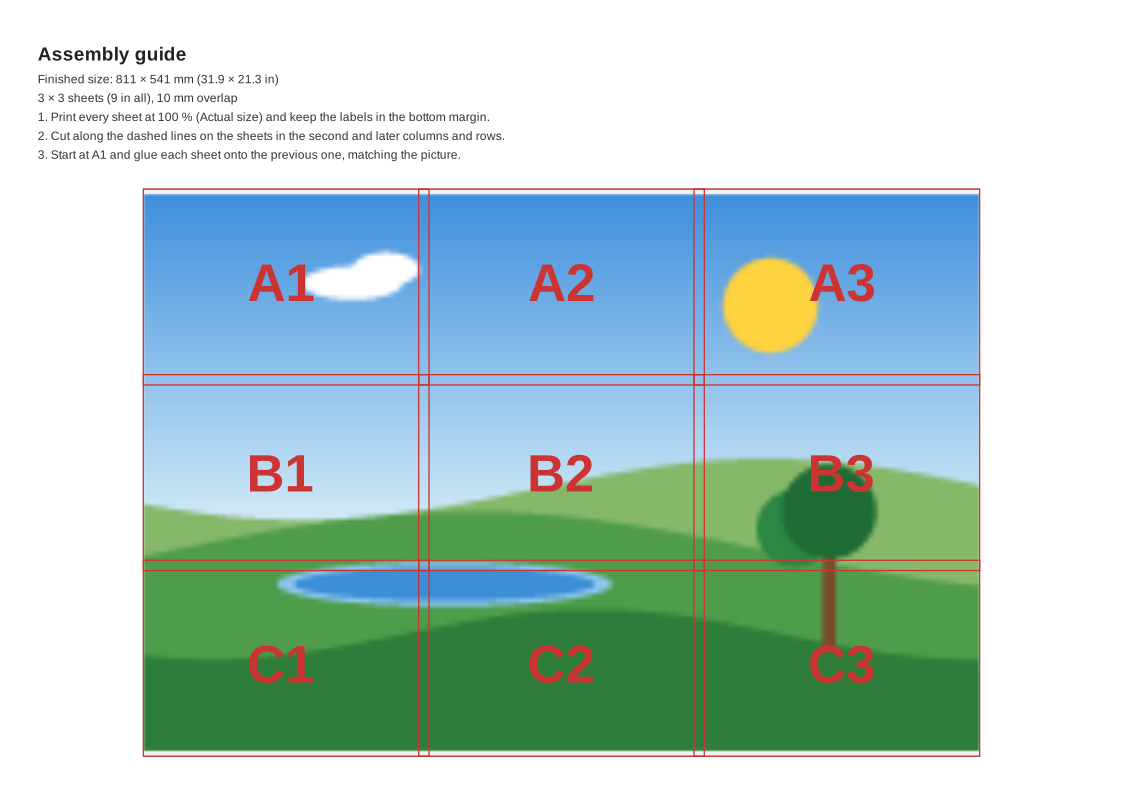
The overlap is the strip that neighbouring sheets share. A larger overlap gives more room for glue and for matching the picture, but it also makes the finished poster smaller. The assembly guide page shows the whole picture with the sheet grid drawn over it, so you can check the layout before you print.
How big will my poster be?
The finished size is the total printable area of your sheets, minus the overlaps. Width equals sheets across times the printable width of one sheet, minus the overlap for each join. Height works the same way, using sheets down and the printable height.
For example, 2 x 2 sheets of US Letter in landscape, with 10 mm margins and 10 mm overlap, make a poster area of about 509 x 382 mm (20 x 15 in). Four sheets across and four down, using A4 with the same margins and overlap, make about 1,078 x 730 mm.
Adding sheets grows the poster quickly, so check the numbers before you print a large grid. Changing the margin or overlap also changes the total size.
Examples made with this generator

Frequently asked questions
How do I put the sheets together?
Print every sheet at 100 % / Actual size, then trim along any dashed lines. Start with A1, lay the next sheet over the overlap, line up the picture and glue. Work row by row until the whole grid is joined.
Is the block poster maker free?
Yes. It is free to use, needs no account, and works in your browser on phones, tablets and computers.
Does my picture get uploaded?
No. The picture is processed only in your browser and is never uploaded. Only the settings are stored in the page address when you use Copy link.
Which picture file types can I use?
PNG, JPEG, GIF, WebP and other formats that your browser can open all work. You can add a file by clicking the picture button, dragging it onto the preview, or pasting an image.
Can I print on A4 instead of US Letter?
Yes. Paper sizes include US Letter, A4, US Legal, Tabloid (11 x 17 in), A3 and A5, in portrait or landscape. Choose the size that matches the paper in your printer.
What if my printer adds margins?
Most home printers cannot print right to the edge of the paper, which is why every sheet keeps a white margin (10 mm by default). If your printer needs more, raise the margin; the picture is then spread over slightly smaller pieces and the finished size shrinks a little.
Related tools
- Paint by numbers generator: use it to turn a picture into a numbered colouring grid.
- Cross stitch pattern maker: use it to turn a picture into a stitchable chart.
- Graph paper generator: use it to print custom graph paper for drawing and planning.
- Grid paper: use it when you need plain squares for sketching or maths.
- Perspective grid: use it when you want guide lines for drawing in perspective.
- Comic strip template: use it to lay out panels for a comic page.